One Filter Rule. Every Device. Get the OS Version Logic Right.

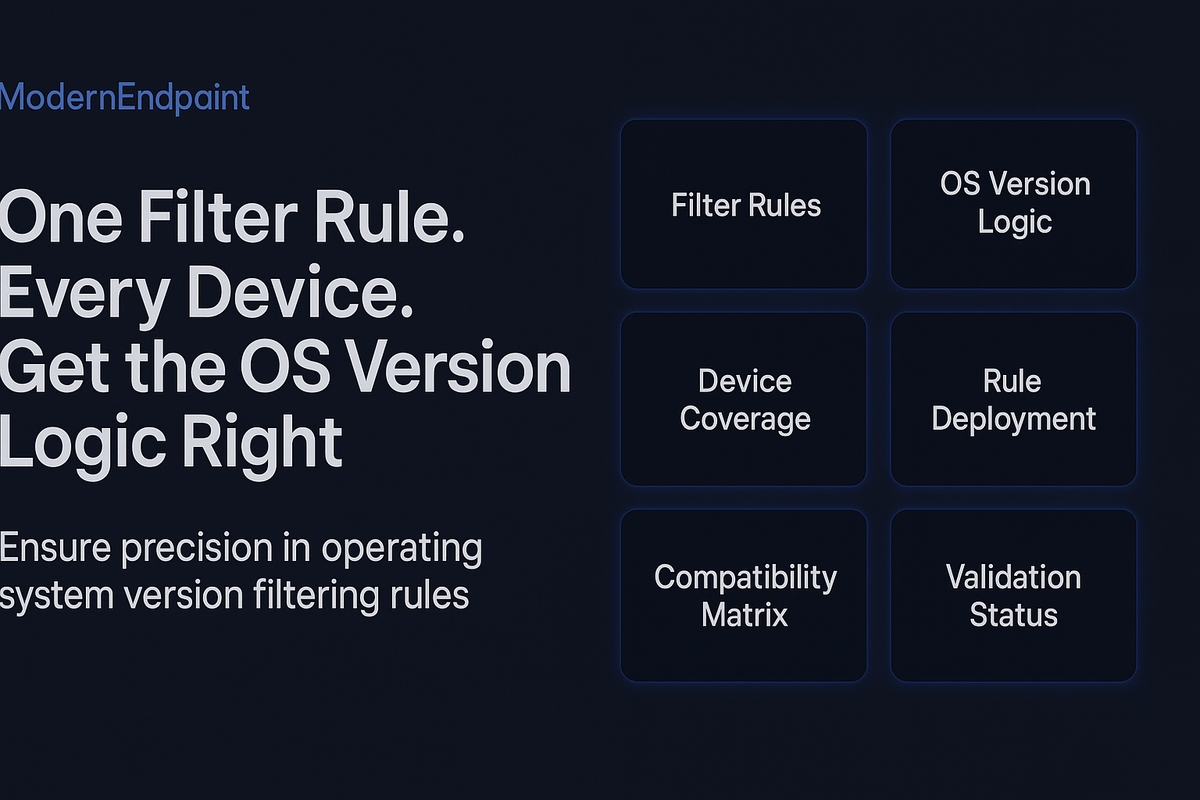
One Filter Rule. Every Device. Get the OS Version Logic Right.
Most Intune admins treat device filters as a simple scoping tool—write a rule, assign it to a policy, move on. That assumption is where compliance drift starts. The real problem isn't whether you're using filters. It's whether your OS version logic is structurally sound enough to survive a mixed-version fleet across Windows 10, Windows 11, and Server SKUs simultaneously.
Why OS Version Filtering Breaks at Scale
The core issue is that Intune device filters evaluate against the OSVersion property, which returns the full build number string—not a friendly version name. Windows 10 21H2 reports as 10.0.19044.x. Windows 11 22H2 reports as 10.0.22621.x. Windows 11 23H2 reports as 10.0.22631.x. Windows Server 2022 reports as 10.0.20348.x.
Notice the pattern: every modern Windows OS starts with 10.0. A filter rule that checks OSVersion -startsWith "10.0" matches everything—Windows 10, Windows 11, and Server. That's not a filter. That's a pass-through.
The second failure mode is range logic. Admins frequently write filters that check for a minimum build number without accounting for the upper boundary. A rule designed to target Windows 10 devices only—written as OSVersion -ge "10.0.19041.0"—will also match Windows 11 devices because 22621 is numerically greater than 19041. String comparison in filter syntax compounds this: "10.0.22621.1" sorts higher than "10.0.19044.1" lexicographically, but the comparison behavior in Intune filter syntax is not always what admins expect when mixing -ge and -le operators on build strings.
The structural insight: OS version filtering in Intune requires both a lower bound AND an upper bound on the build number to correctly isolate a specific Windows release. A single -ge predicate is never sufficient for production compliance scoping.
The third failure mode is SKU blindness. Intune's OSVersion property alone cannot distinguish a Windows 10 Enterprise device from a Windows Server 2019 device running the same build prefix. You need to combine OSVersion with operatingSystemSKU or deviceType to write a filter that is actually OS-specific.
---
The Build Number Map You Need Before Writing Any Filter
Before writing a single filter rule, you need a reference table. This is the foundation every filter in your environment should be built against.
| Windows Release | Marketing Name | Build Number Range |
|---|---|---|
| Windows 10 21H2 | 21H2 | 10.0.19044.x |
| Windows 10 22H2 | 22H2 | 10.0.19045.x |
| Windows 11 21H2 | 21H2 | 10.0.22000.x |
| Windows 11 22H2 | 22H2 | 10.0.22621.x |
| Windows 11 23H2 | 23H2 | 10.0.22631.x |
| Windows 11 24H2 | 24H2 | 10.0.26100.x |
| Windows Server 2019 | 1809 | 10.0.17763.x |
| Windows Server 2022 | 21H2 | 10.0.20348.x |
| Windows Server 2025 | 24H2 | 10.0.26100.x |
Note that Windows 11 24H2 and Windows Server 2025 share the same base build number: 10.0.26100.x. This is not a documentation error. Microsoft ships both on the same kernel base. If your filter targets 10.0.26100, it will match both unless you add a SKU predicate.
Use the following PowerShell block to pull current OS build data from your enrolled devices via Microsoft Graph. This gives you a live inventory before you commit to any filter logic.
Connect-MgGraph -Scopes "DeviceManagementManagedDevices.Read.All"

$devices = Get-MgDeviceManagementManagedDevice -All -Select "deviceName,operatingSystem,osVersion,skuFamily"

$devices |
    Where-Object { $_.OperatingSystem -eq "Windows" } |
    Select-Object DeviceName, OsVersion, SkuFamily |
    Group-Object OsVersion |
    Sort-Object Name |
    Format-Table -AutoSize
Run this before any filter deployment. If you see build numbers you don't recognize in your environment, resolve them against the table above before writing predicates.
---
Writing the Filter Rule That Actually Works
Here is the exact filter syntax pattern for targeting Windows 10 22H2 devices only—excluding Windows 11, excluding Server, and excluding any Windows 10 release that is no longer in your support window.
Intune Filter Rule — Windows 10 22H2 Only:
(device.osVersion -startsWith "10.0.19045") and (device.deviceOwnership -eq "Corporate")This works because 10.0.19045 is the unique build prefix for Windows 10 22H2. No other Windows release shares this prefix. The -startsWith operator handles the trailing patch-level digits cleanly without requiring a range.
Now here is the pattern for Windows 11 22H2 and 23H2 combined—a common requirement when you want to apply a compliance policy to all currently supported Windows 11 releases:
Intune Filter Rule — Windows 11 22H2 and 23H2 (Supported Releases):
(device.osVersion -startsWith "10.0.22621" or device.osVersion -startsWith "10.0.22631") and (device.operatingSystemSKU -in ["Enterprise", "Education", "Professional"])The operatingSystemSKU predicate here is doing critical work. It excludes Server SKUs that might otherwise match on build prefix overlap in future releases.
For environments that need to target all Windows 10 devices regardless of specific release—for example, to apply a legacy compliance baseline or a remediation script—use a bounded range:
Intune Filter Rule — All Windows 10 (Any Release, Non-Server):
(device.osVersion -startsWith "10.0.190" or device.osVersion -startsWith "10.0.180") and (device.operatingSystemSKU -in ["Enterprise", "Education", "Professional"])This captures the Windows 10 build prefix range (17xxx through 19xxx) while explicitly excluding Server SKUs. It will not match Windows 11 (22000+) or Server 2022 (20348).
---
Validating Filter Logic Before Assignment
Never assign a filter to a production policy without validating it first. Intune provides a Filter Evaluation tool in the portal under Devices → Filters → [Your Filter] → Review, but this tool only evaluates against a single device at a time. For fleet-scale validation, you need Graph.
The following KQL query runs against your Microsoft Intune Data Warehouse or Log Analytics workspace (if you've connected Intune diagnostic logs) to surface devices that would match a given OS version predicate:
// Intune Device Inventory — OS Version Distribution
// Run in Log Analytics connected to Intune Diagnostic Logs
IntuneDevices
| where OperatingSystem == "Windows"
| extend MajorBuild = tostring(split(OSVersion, ".")[2])
| summarize DeviceCount = count() by OSVersion, MajorBuild
| where toint(MajorBuild) between (19041 .. 19045)   // Windows 10 range
| order by OSVersion asc
Adjust the between range to match the build numbers you're targeting. This query gives you a count of devices that would be in scope before you commit the filter to a policy assignment.
For environments without Log Analytics integration, use Graph directly:
Connect-MgGraph -Scopes "DeviceManagementManagedDevices.Read.All"

$targetPrefix = "10.0.19045"

$matchingDevices = Get-MgDeviceManagementManagedDevice -All `
    -Select "deviceName,osVersion,operatingSystemSKU,complianceState" |
    Where-Object { $_.OsVersion -like "$targetPrefix*" }

Write-Host "Devices matching build prefix $targetPrefix : $($matchingDevices.Count)"

$matchingDevices |
    Select-Object DeviceName, OsVersion, ComplianceState |
    Sort-Object OsVersion |
    Format-Table -AutoSize
Run this for every filter predicate before deployment. The output tells you exactly which devices are in scope and their current compliance state—so you can anticipate the impact of the policy assignment before it goes live.
---
Operational Impact on Compliance Drift
Incorrect OS version filtering doesn't just create policy gaps—it creates silent compliance drift that is structurally invisible to most monitoring setups.
Here's the failure chain: A compliance policy is assigned to a group with a filter that targets Windows 11 22H2. A fleet of Windows 10 22H2 devices exists in the same group. The filter correctly excludes those Windows 10 devices from the policy. But the compliance policy was the only policy enforcing BitLocker encryption status on those devices. The Windows 10 devices are now unevaluated—not non-compliant, not compliant, but in a "Not Evaluated" state that many dashboard views count as compliant by default.
In a SOC 2 Type II audit, "Not Evaluated" is not compliant. An auditor reviewing your Intune compliance reports will flag any device that cannot be attested as having been evaluated against a named control. If your filter logic silently excluded those devices from evaluation, you have an audit gap—not a security gap you can remediate quickly, but a documentation gap that requires evidence of intentional policy design.
The governance fix is to pair every exclusion filter with an explicit catch-all compliance policy for devices that fall outside your primary filter scope. That catch-all policy should set a minimum compliance baseline—at minimum, requiring device encryption and a compliant OS version—and it should be assigned without a filter so it evaluates every enrolled Windows device.
This pattern ensures no device is ever in a permanently "Not Evaluated" state due to filter logic gaps.
---
Governance Considerations for Mixed-Version Fleets
Mixed-version fleets—environments running Windows 10 21H2, 22H2, and Windows 11 simultaneously—are the hardest to govern correctly because the filter logic must be version-aware at every policy layer.
The recommended governance pattern is a tiered filter architecture:
Tier 1 — Universal Baseline: One compliance policy, no filter, assigned to all Windows devices. Enforces encryption, secure boot, and TPM attestation. This policy has no OS version dependency and should pass on any supported Windows release.
Tier 2 — Version-Specific Controls: Separate compliance policies per OS release, each with a precise filter using the -startsWith pattern. These policies enforce controls that are OS-specific—for example, Windows 11 policies can enforce virtualization-based security (VBS) requirements that don't exist on Windows 10.
Tier 3 — Remediation Targeting: Configuration profiles and remediation scripts scoped with filters to target only the OS versions where the remediation applies. A script that modifies a Windows 11-only registry key should never run on a Windows 10 device.
This three-tier structure means every device is always evaluated by at least one policy (Tier 1), version-specific controls apply only where they're valid (Tier 2), and operational scripts don't break on unsupported OS versions (Tier 3).
For regulatory frameworks—SOC 2, ISO 27001, NIST 800-53—document each filter rule in your policy register with the explicit build number range it targets, the rationale for that range, and the date the filter was last reviewed. OS version filters have a shelf life. When Microsoft ends support for a Windows release, the filter targeting that release becomes a liability: it continues to evaluate devices that are now non-compliant by definition, and it may prevent those devices from being correctly flagged.
Set a calendar review for every OS version filter in your environment aligned to Microsoft's end-of-support dates. When a release reaches end of support, the filter targeting it should either be removed or converted to a non-compliant catch policy that flags those devices for remediation.
---
Recommendations for Production Deployment
Before deploying any OS version filter in production, work through this checklist:
Inventory first. Run the Graph PowerShell query from the validation section. Know exactly which build numbers exist in your fleet before writing a single predicate.
Use -startsWith over range operators. The -startsWith pattern on a specific build prefix (e.g., 10.0.22621) is unambiguous and immune to the string comparison edge cases that affect -ge and -le on build strings.
Always add a SKU predicate when targeting Windows 11 24H2 or Windows Server 2025. These share the 10.0.26100 prefix. Without operatingSystemSKU, your filter will match both.
Pair every exclusion filter with a catch-all baseline policy. No device should ever be in a permanently "Not Evaluated" state.
Document every filter with its build number range and review date. Filters without documented scope become audit liabilities within one OS release cycle.
Test in a pilot group before broad assignment. Use the Graph validation query to confirm device counts match your expectations. A filter that returns 0 devices is as dangerous as one that returns too many—it means your compliance policy is evaluating nothing.
---
Final Thoughts
The gap between "filter assigned" and "filter working correctly" is where compliance programs quietly fail. OS version logic in Intune is precise work—build number prefixes, SKU predicates, bounded ranges, and catch-all baselines all have to be correct simultaneously for a mixed-version fleet to be genuinely attestable.
The admins who get this right aren't using more complex tools. They're using the same Intune filter engine everyone else has access to. The difference is that they mapped their build numbers before writing predicates, they validated scope with Graph before assigning policies, and they built a tiered architecture that ensures no device is ever silently excluded from evaluation.
That's not advanced Intune knowledge. It's disciplined Intune knowledge—and in a SOC 2 audit, the distinction matters.
---