Quick Settings Looks Cosmetic. It's Hiding Your VPN Status.

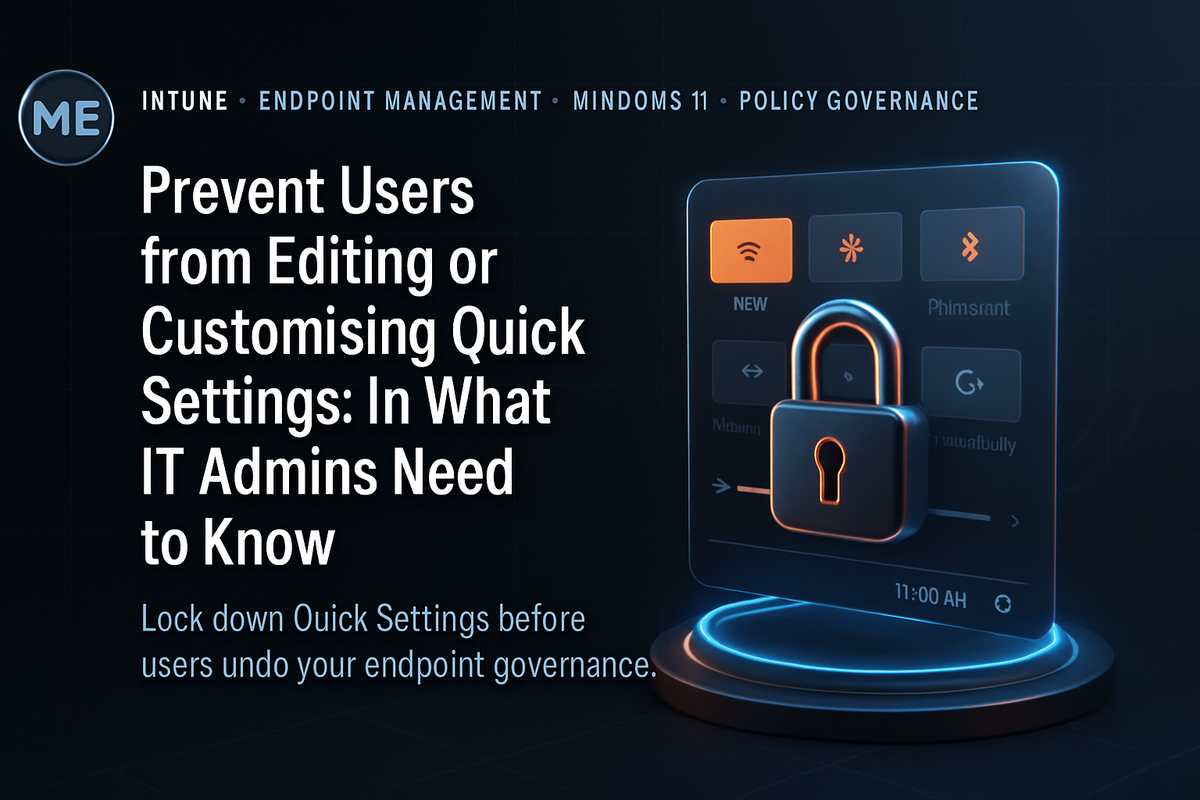
Prevent Users from Editing or Customising Quick Settings in: What IT Admins Need to Know
I've walked into environments where the helpdesk ticket queue was dominated by a single class of complaint: users who had accidentally removed the VPN toggle from their Quick Settings panel, couldn't reconnect to corporate resources, and were convinced their laptop was broken. The fix took 30 seconds once you knew where to look. The cost, multiplied across a 5,000-seat estate, was not trivial. Nobody had thought to lock the Quick Settings panel down because it seemed like a minor cosmetic concern. It was not.
🔍 Why Quick Settings Governance Matters More Than You Think
The Quick Settings panel in Windows 11 exposes toggles for Wi-Fi, Bluetooth, Airplane Mode, Battery Saver, Focus Assist, VPN status indicators, and more. It is the fastest path a user has to disable security-relevant system states without ever opening Settings.
Most organizations treat this as harmless. I disagree.
A user who removes the Battery Saver toggle causes no incident. A user who removes the VPN toggle and then disconnects from the corporate VPN, then connects to a public hotspot because they assumed the VPN was running, causes a data exposure event. The mechanism is the same. The consequence is not.
Windows 11 made the Quick Settings panel fully user-editable by design. Microsoft's intent was flexibility and personalization. That is a reasonable consumer-oriented decision. In a managed enterprise environment, it creates configuration drift at the endpoint level that most monitoring tools do not detect, because no policy was violated, no malware executed, and no security alert fired. The user simply clicked "Edit," removed a button, and clicked "Done."
That is where drift starts.
---
🧩 What the Policy Actually Does
The Disable Editing Quick Settings policy, configured through the Settings Catalog in Microsoft Intune, prevents users from modifying the Quick Settings panel layout. When the policy is applied:
- Users cannot add new toggles to the panel
- Users cannot remove existing toggles
- Users cannot rearrange the order of toggles
- The "Edit quick settings" option disappears from the right-click context menu
The policy applies to Windows 10 and Windows 11 devices managed through Intune. It is configured as a Settings Catalog profile, which means you get full audit trail, assignment targeting, and conflict detection through the standard Intune policy pipeline.
This policy locks the layout of Quick Settings. It does not control which toggles are available or pre-configure a specific layout. If you need to define a specific set of toggles, you need to combine this policy with other endpoint configuration controls. Locking an empty or poorly configured panel is not an improvement over doing nothing.
This distinction matters architecturally. The policy is a constraint control, not a configuration control. It prevents future modification. It does not remediate current state.
---
🏗️ How to Configure It in Intune
The configuration path is straightforward. Navigate in Microsoft Intune Admin Center to Devices > Configuration > Create > New policy. Select Windows 10 and later as the platform and Settings Catalog as the profile type.
Inside the Settings Catalog, search for "Quick Settings" and locate the relevant setting. Assign the profile to your target device group, apply a meaningful name like "Disable Editing Quick Settings," and add a description that your successor will actually understand.
| Field | Value |
|---|---|
| Platform | Windows 10 and later |
| Profile type | Settings catalog |
| Policy name | Disable Editing Quick Settings |
| Status | Active |
For teams who prefer configuration-as-code or need to deploy this at scale through automation, the underlying CSP can be targeted directly. The relevant Microsoft documentation on the Settings Catalog and Windows CSP policies lives at https://learn.microsoft.com/en-us/mem/intune/configuration/settings-catalog and https://learn.microsoft.com/en-us/windows/client-management/mdm/policy-csp-start.
---
🚫 What This Technology Does NOT Solve
This is where I see most implementations go wrong. Administrators deploy the policy, mark the ticket closed, and assume the problem is solved. These are the gaps the policy does not address:
It does not configure a standard Quick Settings layout. If your users have already personalised their panels, the policy locks those personalised states. You are not enforcing a corporate standard. You are freezing whatever is currently there.
It does not prevent users from acting on the visible toggles. A locked panel still lets users toggle Wi-Fi off, enable Airplane Mode, or disable Focus Assist. The policy controls layout editing, not toggle usage. If your concern is users disabling connectivity, you need separate controls.
It does not affect the Settings app. Users who want to change network, Bluetooth, or power settings can still open the full Settings app. Quick Settings lockdown is not a settings lockdown.
It does not create a helpdesk alert when users attempt to edit. There is no native telemetry that surfaces failed Quick Settings edit attempts. You cannot monitor attempted violations through Intune reporting alone.
It does not work retroactively on degraded layouts. If a critical toggle was already removed before the policy was applied, the policy will not restore it.
---
⚠️ The Operational Implications Nobody Talks About
In my experience, endpoint policies that constrain user behaviour always generate a secondary effect: helpdesk contacts from users who don't understand why the interface changed. Quick Settings lockdown is no different.
When users notice the "Edit quick settings" option has disappeared, a percentage will log a ticket. They will describe it as the system being broken. Your helpdesk needs a prepared response. That is not a trivial operational consideration.
Deploy this policy without a user communication plan and you will see a measurable spike in helpdesk tickets within the first two weeks. The policy change is silent from the user's perspective. They get no notification, no explanation. They discover the change by trying to edit and finding the option gone. Prepare your support team before you deploy, not after.
There is also a governance question that most teams skip: who owns the definition of what the "correct" Quick Settings layout looks like? If the answer is "nobody," then you are locking in randomness at scale.
I would treat Quick Settings layout definition as a formal endpoint standard, owned by the endpoint management team, reviewed annually, and documented in your endpoint baseline. It sounds like overkill for a panel of toggle buttons. It is not, because every toggle on that panel represents a user-accessible state change for a system function.
---
📊 Before and After: Policy Impact by Device Population
| Device Type | Before Policy | After Policy | Recommended Action |
|---|---|---|---|
| Shared/Kiosk devices | Random layouts per user session | Consistent layout | Apply immediately |
| Frontline worker devices | Inconsistent, often degraded | Controlled baseline | Apply with standard layout |
| Executive devices | Personalised, often VPN-critical toggles removed | Locked (whatever exists) | Audit before applying |
| Developer workstations | Heavily customised | Locked (complex state) | Assess need first |
| Standard enterprise laptops | Mixed, partially degraded | Locked (inconsistent) | Define standard, then apply |
---
---
⏱ Production Lifecycle
---
💡 What This Tells Us About Endpoint Governance More Broadly
This policy is small. Its implications are not. It illustrates a recurring pattern I see in enterprise endpoint environments: constraint controls deployed without baseline controls produce inconsistent outcomes at scale.
The Quick Settings panel is a microcosm of the broader endpoint governance challenge. You cannot lock what you have not defined. You cannot monitor what you have not baselined. And you cannot remediate drift that your tooling does not surface.
If I were designing the endpoint governance model for an organization deploying this policy, I would pair it with a formal endpoint baseline review that defines the expected Quick Settings layout, documents the rationale for each included toggle, assigns ownership to the endpoint management team, and schedules an annual review. One page of documentation. Six months saved when the next Windows feature update rearranges the available options.
Before applying the lockdown policy, run a one-time audit across your managed fleet to capture current Quick Settings state. You can use Intune device configuration reports combined with a PowerShell-based inventory script deployed as a Proactive Remediation. This gives you a pre-deployment baseline and identifies devices with significantly degraded layouts that need remediation before locking.
$quickSettingsKey = "HKCU:\Control Panel\Quick Actions\Control Center\PinnedList"

if (Test-Path $quickSettingsKey) {
    $pinnedItems = Get-ItemProperty -Path $quickSettingsKey
    Write-Output "Quick Settings registry path exists. Manual review recommended."
    exit 1  # Triggers remediation review
} else {
    Write-Output "Quick Settings using default layout."
    exit 0
}---
Do not deploy this policy to executive devices or developer workstations without first auditing their current Quick Settings layout. Locking a configuration where the user has already removed the VPN status indicator means your most sensitive users are operating without visual confirmation of their security state, and you have now made that state permanent and invisible.
---
🎯 Final Architect Recommendation
Deploy this policy. But deploy it with intention, not as a checkbox.
For shared devices, kiosk devices, and frontline worker endpoints, apply it immediately after defining the expected layout. These device classes have no legitimate need for user-driven Quick Settings customisation, and the operational benefit of consistency is immediate.
For standard enterprise laptops and knowledge worker devices, audit the current state first. Run a pre-deployment inventory, identify devices with degraded or non-standard layouts, remediate those devices to a baseline configuration, and then apply the lockdown. Skipping the audit and locking randomness at scale is the most common mistake I see with this policy.
For executive devices and developer workstations, have an explicit conversation about whether the constraint is appropriate. These populations often have legitimate reasons for customised layouts, and the security risk from Quick Settings modification is lower than the operational friction from unexplained UI constraint.
The policy itself is low complexity. The governance model around it is where the real work lives. Define your baseline, assign ownership, document your rationale, and schedule your review cycle. A UI constraint without a governance model behind it is just technical debt wearing a policy label.
---
🎯 The Takeaway
- If you deploy the lockdown policy without auditing current layouts first, you will lock in inconsistencies at scale. Define the baseline before you enforce the constraint.
- If your device population includes kiosks, shared devices, or frontline workers, apply this policy immediately. The benefit is clear and the risk of not applying it is real.
- Always assign explicit governance ownership before deploying a constraint policy. If nobody owns the baseline definition, the policy will drift into irrelevance within two years.
- If you manage a mixed device population, segment your policy assignment by device role. A single broad assignment group is an operational decision that will generate helpdesk noise and governance gaps simultaneously.
- Never treat Quick Settings lockdown as a substitute for broader endpoint baseline governance. It solves one surface. The operational model, the layout definition, and the annual review cycle are what make it a durable control.